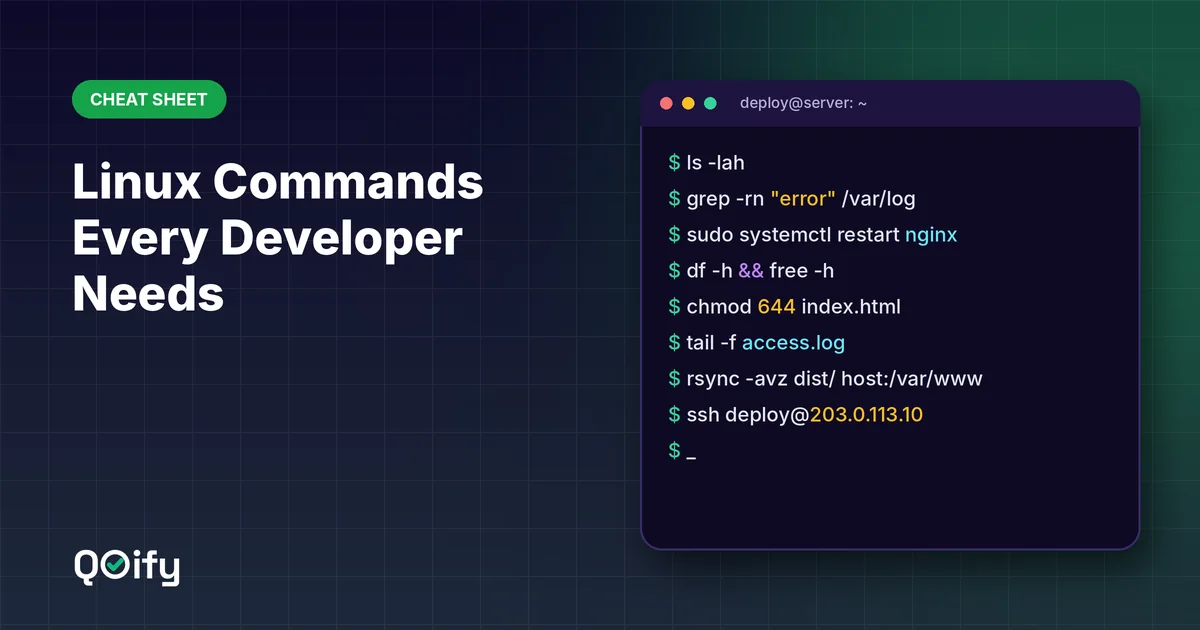
Quick answer: the Linux commands you will use most are ls, cd, pwd, cp, mv, rm and mkdir for files; cat, less, head, tail and grep for reading and searching; chmod, chown and sudo for permissions; ps, top, kill and systemctl for processes and services; df, du and free for disk and memory; and ssh, scp, curl and ip for networking. This cheat sheet lists each with a short description and an example.
Whether you manage a cloud server, deploy a web app or use the terminal on your laptop, these commands cover almost everything you will do day to day. Commands work on Ubuntu, Debian, RHEL, Rocky, Fedora and most other distributions, and many work on macOS too.
Tip: add --help to any command, or run man command, to see all its options. Commands marked with sudo need administrator rights.
Navigating the file system
| Command |
Description |
Example |
pwd |
Print the current directory |
pwd |
ls |
List files |
ls -lah (long list, hidden files, human-readable sizes) |
cd |
Change directory |
cd /var/www, cd .. (up), cd ~ (home), cd - (previous) |
tree |
Show folders as a tree |
tree -L 2 |
realpath |
Show the full path of a file |
realpath notes.txt |
Working with files and folders
| Command |
Description |
Example |
touch |
Create an empty file or update its time |
touch index.html |
mkdir |
Create a directory |
mkdir -p app/src/components |
cp |
Copy files or folders |
cp -r site/ backup/ |
mv |
Move or rename |
mv old.txt new.txt |
rm |
Delete files |
rm file.txt, rm -r folder/ |
rmdir |
Delete an empty folder |
rmdir temp |
ln |
Create a link |
ln -s /var/www/app current |
file |
Detect a file's type |
file logo.png |
stat |
Detailed file information |
stat config.yml |
Careful: rm -rf deletes without asking and there is no recycle bin. Double-check the path before pressing Enter.
Viewing files
| Command |
Description |
Example |
cat |
Print a whole file |
cat .env.example |
less |
Scroll through a file (q to quit, / to search) |
less /var/log/syslog |
head |
First lines |
head -n 20 access.log |
tail |
Last lines |
tail -n 50 error.log |
tail -f |
Follow a file as it grows |
tail -f /var/log/nginx/access.log |
wc |
Count lines, words, bytes |
wc -l users.csv |
diff |
Compare two files |
diff old.conf new.conf |
Searching
| Command |
Description |
Example |
grep |
Search text in files |
grep -rn "TODO" src/ |
grep -i |
Case-insensitive search |
grep -i "error" app.log |
grep -v |
Lines that do not match |
grep -v "^#" nginx.conf |
find |
Find files by name, size, time |
find . -name "*.log" -mtime +7 |
find -exec |
Run a command on each result |
find . -name "*.tmp" -exec rm {} \; |
locate |
Fast search using an index |
locate nginx.conf |
which |
Path of a command |
which python3 |
Permissions and ownership
| Command |
Description |
Example |
chmod |
Change permissions |
chmod 644 index.html, chmod +x deploy.sh |
chown |
Change owner and group |
sudo chown -R www-data:www-data /var/www/app |
sudo |
Run as administrator |
sudo apt update |
su |
Switch user |
su - deploy |
id |
Show user and groups |
id |
umask |
Default permissions for new files |
umask 022 |
Reading permissions: -rwxr-xr-- means the owner can read, write and execute; the group can read and execute; others can only read.
| Number |
Meaning |
Typical use |
755 |
Owner full; others read and execute |
Folders, scripts |
644 |
Owner read/write; others read |
Web files |
600 |
Owner only |
Private keys, .env files |
Processes and system monitoring
| Command |
Description |
Example |
ps |
List processes |
ps aux | grep node |
top / htop |
Live process monitor |
htop |
kill |
Stop a process by ID |
kill 1234, kill -9 1234 (force) |
pkill |
Stop processes by name |
pkill -f "python app.py" |
jobs, bg, fg |
Manage background jobs |
fg %1 |
nohup |
Keep running after logout |
nohup ./worker.sh & |
uptime |
Uptime and load average |
uptime |
free |
Memory usage |
free -h |
vmstat |
CPU, memory and I/O summary |
vmstat 2 |
lsof |
Open files and ports |
sudo lsof -i :3000 |
Disk and storage
| Command |
Description |
Example |
df |
Free disk space per drive |
df -h |
du |
Size of folders |
du -sh *, du -h --max-depth=1 /var |
lsblk |
List disks and partitions |
lsblk |
mount |
Mount a drive |
sudo mount /dev/sdb1 /mnt/data |
ncdu |
Interactive disk usage browser |
ncdu / |
Networking
| Command |
Description |
Example |
ip a |
Network interfaces and IP addresses |
ip a |
ping |
Test connectivity |
ping -c 4 google.com |
curl |
Make HTTP requests |
curl -I https://example.com, curl -X POST -d '{"a":1}' -H "Content-Type: application/json" URL |
wget |
Download files |
wget https://example.com/file.zip |
ss |
Listening ports and connections |
ss -tulpn |
dig / nslookup |
DNS lookup |
dig example.com +short |
traceroute |
Path packets take |
traceroute example.com |
hostname -I |
This machine's IP addresses |
hostname -I |
Remote access and file transfer
| Command |
Description |
Example |
ssh |
Connect to a remote server |
ssh deploy@203.0.113.10 |
ssh -i |
Connect with a specific key |
ssh -i ~/.ssh/server.pem ubuntu@host |
ssh-keygen |
Create an SSH key pair |
ssh-keygen -t ed25519 -C "you@company.com" |
ssh-copy-id |
Install your key on a server |
ssh-copy-id deploy@host |
scp |
Copy files over SSH |
scp dist.zip deploy@host:/var/www/ |
rsync |
Fast, resumable sync |
rsync -avz --delete dist/ deploy@host:/var/www/app/ |
Archives and compression
| Command |
Description |
Example |
tar -czf |
Create a .tar.gz archive |
tar -czf backup.tar.gz /var/www/app |
tar -xzf |
Extract a .tar.gz archive |
tar -xzf backup.tar.gz -C /tmp |
tar -tzf |
List contents |
tar -tzf backup.tar.gz |
zip / unzip |
ZIP files |
zip -r site.zip site/, unzip site.zip |
gzip / gunzip |
Compress single files |
gzip access.log |
Package management
| Task |
Debian / Ubuntu (apt) |
RHEL / Rocky / Fedora (dnf) |
| Refresh package lists |
sudo apt update |
sudo dnf check-update |
| Upgrade everything |
sudo apt upgrade |
sudo dnf upgrade |
| Install |
sudo apt install nginx |
sudo dnf install nginx |
| Remove |
sudo apt remove nginx |
sudo dnf remove nginx |
| Search |
apt search redis |
dnf search redis |
| Show details |
apt show nginx |
dnf info nginx |
Users and groups
| Command |
Description |
Example |
whoami |
Current user |
whoami |
adduser / useradd |
Create a user |
sudo adduser deploy |
passwd |
Change a password |
sudo passwd deploy |
usermod |
Add a user to a group |
sudo usermod -aG sudo deploy |
groups |
Groups of a user |
groups deploy |
deluser / userdel |
Remove a user |
sudo deluser olduser |
Services and logs (systemd)
| Command |
Description |
Example |
systemctl status |
Check a service |
systemctl status nginx |
systemctl start/stop/restart |
Control a service |
sudo systemctl restart nginx |
systemctl reload |
Reload config without stopping |
sudo systemctl reload nginx |
systemctl enable |
Start at boot |
sudo systemctl enable --now redis |
journalctl |
View service logs |
journalctl -u nginx -f, journalctl --since "1 hour ago" |
Text processing
| Command |
Description |
Example |
sort |
Sort lines |
sort -n numbers.txt |
uniq |
Remove or count duplicates (after sort) |
sort ips.txt | uniq -c | sort -rn |
cut |
Extract columns |
cut -d',' -f1,3 users.csv |
awk |
Column processing |
awk '{print $1}' access.log |
sed |
Find and replace |
sed -i 's/http:/https:/g' links.txt |
tr |
Translate characters |
echo "abc" | tr a-z A-Z |
xargs |
Build commands from input |
cat urls.txt | xargs -n1 curl -sI |
tee |
Write to a file and the screen |
make build | tee build.log |
Example: top 10 IP addresses in a web log
awk '{print $1}' /var/log/nginx/access.log | sort | uniq -c | sort -rn | head -10
Pipes, redirection and chaining
command > out.txt        # write output to a file (overwrite)
command >> out.txt       # append
command 2> errors.txt    # write errors to a file
command > all.log 2>&1   # output and errors together
command1 | command2      # pipe output into the next command
cmd1 && cmd2             # run cmd2 only if cmd1 succeeded
cmd1 || cmd2             # run cmd2 only if cmd1 failed
cmd1 ; cmd2              # run both regardless
Environment variables
echo $HOME
export APP_ENV=production       # set for this session
env | grep APP_                 # list variables
echo 'export PATH="$HOME/bin:$PATH"' >> ~/.bashrc && source ~/.bashrc
Scheduling with cron
crontab -e      # edit your scheduled jobs
crontab -l      # list them
# ┌ minute (0-59)
# │ ┌ hour (0-23)
# │ │ ┌ day of month (1-31)
# │ │ │ ┌ month (1-12)
# │ │ │ │ ┌ day of week (0-6, Sunday = 0)
  30 2 * * * /home/deploy/backup.sh >> /var/log/backup.log 2>&1
  */15 * * * * /usr/bin/php /var/www/app/cron.php
Useful shortcuts and history
| Shortcut / command |
What it does |
Tab |
Auto-complete names |
↑ / ↓ |
Previous / next command |
Ctrl + R |
Search command history |
Ctrl + C |
Stop the running command |
Ctrl + L or clear |
Clear the screen |
Ctrl + A / Ctrl + E |
Jump to start / end of line |
history |
Show past commands |
!! |
Repeat the last command (sudo !! is handy) |
alias ll='ls -lah' |
Create a shortcut |
Quick server health check
uptime            # load average
free -h           # memory
df -h             # disk space
ss -tulpn         # what is listening
systemctl --failed # services that failed
journalctl -p err -b # errors since the last boot
Conclusion
You don't need to memorise hundreds of commands. Learn to move around and manage files, read and search logs, check permissions, watch processes, and connect securely with ssh, and you can handle most server and development tasks. Keep this cheat sheet handy, use --help and man when you need more options, and always pause before running rm -rf or anything with sudo.